Affichage des articles dont le libellé est Gps Systems. Afficher tous les articles

mercredi 27 août 2014

4 Comments
                                               GPS Tracking Systems


GPS tracking systems, or global positioning systems (GPS), were first designed for the military by the Department of Defense in 1973. Their purpose was to aid the armed forces and military vehicles, airliners and ships in tracking their global positions with pinpoint precision.
The technology has evolved to such a degree that GPS tracking systems are now used to:
GPS tracking systems
  • Assist drivers in navigating their vehicles
  • Track the whereabouts, direction and speed of a teenager's car
  • Help businesses with vehicle fleets control their costs and improve accountability
  • Improve a player's golf game
  • Reel in more fish
  • Participate in an outdoor treasure hunts called "geocaching"


How GPS Tracking Systems Work

GPS tracking system satellites orbit Earth and transmit signals to receivers on the ground. Data transmitted by the satellites includes location and current time. Based on the distance and time it takes for the signals to reach the GPS unit, the receiver can calculate its ground position. According to the National Air and Space Museum, there are at least 24 GPS satellites in operation at all times.

Basic Navigation with GPS Tracking Systems

For individuals who travel to unfamiliar locations for business or pleasure, have a difficult time deciphering maps or would rather not ask for directions, a standard GPS navigational system for the car is a must-have. Once a destination is keyed into the GPS, the system, depending on its capabilities, can map a route, verbally provide the driver with turn-by-turn directions and display the driving route on the screen. Drivers can ask for the shortest route, the quickest route or toll-free routes. Users can also locate service stations, ATMs, lodging and tourist attractions. More sophisticated GPS units help individuals locate an eating establishment based on their food preferences.

Tracking Teenagers

A newer model of GPS -- the GetiSight -- is becoming popular with parents of teenage children. This tracking system assists parents in knowing the whereabouts of a teenager's car, the direction in which the car is moving and how fast the car is traveling. It also is a way to make young adults mindful of their driving patterns.
The GetiSight comes with a tiny pre-installed device that is monitored in real time (the actual time it takes for an action or process to take place) on the company's homepage. All data gathered by the system is available through a safe, password-protected Internet portal. Once individuals are logged in they are able to follow the vehicle and monitor the GPS. Individualized e-mail and mobile telephone text message alerts can be set up to notify parents if their child's car is no longer within the defined parameters or if they are using excessive speed.

GPS Tracking Systems for Business

According to GPS Technologies, a GPS tracking system can help businesses - especially those with vehicle fleets - improve their bottom line. GPS fleet management and GPS tracking systems are helping companies control their operating costs, improve accountability and increase their productivity, efficiency and profits. These devices generally are most effective when installed in vehicles that are used for service, sales, deliveries and long-distance transportation.
GPS Tracking Systems designed specifically for the transportation industry are equipped with real-time vehicle tracking systems, stolen vehicle recovery software and an all-satellite-based monitoring and communication system for tracking equipment any place at any time. Text reports are generated that provide travel and rest times, locations, speed, routes, driver and vehicle effectiveness, and productivity with both real-time updates and stored data.

GPS Tracking Systems for Fun and Learning

GPS can be used when golfing, fishing, and searching for buried treasure or working out. Golfers who bring their GPS on the links can select which golf club to use for better accuracy. Players must map the fairways by walking the golf course to establish waypoints. Most systems require the user to click on the button that resembles a flag close to each tee box and hole. As the round of golf progresses, the player's location and distance to the hole is displayed. The necessary software can be downloaded (at no cost) and then loaded onto the GPS.
The TomTom GPS and Garmin GPSMap76CSx is a fisherman's delight. This waterproof system-equipped with an electronic compass tells the user what days and times are best for fishing and what fish are in season. It also includes information on premium fishing locations, sunrise and sunset times, lunar phases and tide tables.
Hide-and-seek lovers and adventure enthusiasts enjoy using their GPS to search for buried treasures. Upon downloading the geocache program, individuals have access to a listing of downloadable waypoint markers for riches buried throughout the United States. Successful hunters then share their adventures online.
Many exercise fanatics use their GPS as a personal fitness trainer. Worn on the wrist, these devices record the user's pace, heart rate and even the number of calories burned. Workout data is committed to the system's memory to monitor an athlete's improvement.

lundi 21 juillet 2014

Be The First To Comment
                              Trick to increase the internal memory of TomTom with 2 gb to 4 gb


Installing an slot SD-Card

On some versions of the TomTom ONE V3, it is possible to weld a SD-Card socket on the motherboard TomTom. Up to 2 GB are possible. 
You should only do this if: 
        . Your warranty is exceeded or if you don't care.
         . You really need more memory (for maps, mp3 music etc. ..)
         . you have the tools to welding and some experience in soldering very small and delicate things.

1. Perform a full backup of the contents Tomtom                       

 Do it with TomTom HOME, but also copy really all the TomTom internal memory on your hard disk

2. Open the Tomtom

      You will find the situation as depicted in picture here:


      Before welding: disconnect the battery.

3. Solder the SD card adapter

    Sd Card Interface only necessary images. The images below are correct : 


tomtom gps interior


Gps cable


mémory card


      Some improvements:
             
           . If you use a 2GB SD card more, install Bootloader 5.5022 or newer.
                . It works best with a micro SD card. So, can save space and install a new memory in the case of                    the TomTom ONE. MicroSD adapter used to support well insulated and narrow. Tested                             SanDisk microSD / TransFlash 2.0GB.

  4. Preparing SD card

      . Copy the entire contents, which you saved in 1. The SD card using a card reader.
      . Insert the Micro - SD card in the Tomtom  .
         . Power amd TomTom system should boot normally .


  .  Now you can copy more music or videos on the TomTom. Another advantage is            the following: If the sdcard is broken, you can just replace them with new very                cheap (I have not tried SD cards over 2GB it may not work .. Check!) 


. 

samedi 19 juillet 2014

Be The First To Comment

                                          Using TomTom GO


TomTom Go


 TomTom GO starts by displaying the navigation view. The screen will appear in black and white until your TomTom GO locates your current position. Once this is done, the navigation view is shown in full colour. In future, your position will be found much faster, normally within a few seconds. Everything on TomTom GO can be accomplished easily using just your finger on the touch screen. Importantly, you can bring up the main options menu by tapping your finger somewhere in the middle of the screen.


How to plan your first route


1. Move outside, if you haven't already done so, so that the GPS hardware can locate your position. This may take some time, and will happen more quickly if you remain stationary. The screen displays your current position on its map, represented in a '3D' navigation view, from a driver's perspective. When you start moving, the navigation view will match the streets outside as you would see them through your windscreen.

2. Bring up the main menu. Use Arrow-head a few times to browse through all the different things you can do, then choose 'Navigate to...'  to start planning your first route.

3. Choose 'Address' . You'll see a standard keyboard, used for entering place names (e.g. towns, streets and favourite locations). Above the keyboard is a small browser window in which your TomTom system will present locations from its database.

4. The best way to see how your TomTom system works is to use it for real, so think of the address that you want to visit and enter the first few letters of the place. Be as specific as possible. As you type, the letters are compared to the built-in list of possible names and any matches appear in the browser window.

5. When you see the name of the place you want, select it. A new browser window is now shown, this time with the prompt 'Street:' at the top. As before, start entering the road name of your destination.

6. When you see the name of the street you want, select it. A third and final keyboard and browser are shown, this time for you to select a house number. For some roads (such as those that don't have house numbers), you'll be asked to select a particular 'Crossing:' (i.e. an intersection). Select a crossing, or enter the house number and then choose 'Done'.

7. The fastest route from your current position to your destination is then calculated. This should only take a few seconds and its progress is shown on the screen. When done, a summary is shown, on a suitably scaled map.

8. Select 'Done' and you'll find yourself back at the main navigation view, but with the route now clearly coloured in for you. 


Helping with your journey

That's the planning all done, so simply buckle your seat belt and drive. As you approach a specific turn in the calculated route, your chosen voice will tell you what to do. For example, "In 100 metres, turn left", followed by "Turn left", without you having to take your eyes off the road. As you travel, following the voice instructions, you'll notice that the navigation view is updated constantly, always showing coming roads and junctions and presenting the best route to you.
Don't worry if you miss a turn or drive down the wrong road. A new fastest route will be calculated automatically, based on your new position and direction of travel. Wherever you go, it will always give you instructions that will take you to your chosen destination.


vendredi 18 juillet 2014

1 Comment
        TomTom MySports: a new app for use with GPS watches

TomTom MySports is a new app given by the GPS manufacturer TomTom. 
TomTom MySports is a mobile application that automatically connects to TomTom Runner and GPS watches TomTom to download performance information, including distance, time, calories, using Bluetooth technology. 
The interest is to be able to easily access information about your activities and access them easily without connecting to a computer. The application can also automatically download data platforms such as online MySports TomTom, RunKeeper and MapMyFitness if you wish. 

TomTom MySports also allows to update the GPS almanac data on TomTom watches for easy reading position .   


TomTom mysports watch

jeudi 17 juillet 2014

1 Comment
                                What's new in the latest version of TomTom Home?


        List of latest features and improvements 

        Version 2.9.8.3423 / 2.9.8.2330 (Mac)
         . This version brings some minor improvements in the payment process.

         Version 2.9.7.3256 (Windows) / 2.9.7.2119 (Mac)
          . This release adds support for the communication system Uconnect 5 "Radio Nav Fiat Group.
       
         Version 2.9.6
          . Several performance enhancements and bug fixes have been made. 

      Version 2.9.5
          . This update fixes an installation problem zones map. 

         Version 2.9.4
          . this version has improved the process of backing up and restoring your data.
          .  this version has improved the billing process when buying cards or services.
          . Several performance enhancements and bug fixes have been made.     
          
          Version 2.9.3
              . To be sure you always enjoy the content and free services corresponding to your GPS, we now                     ask you to login to your account when you use HOME.  
       . Several performance enhancements and bug fixes have been made.    
      
       Version 2.9.2
        . this version has modified the messages recommending not disconnect your navigation device or                      memory card during the update, backup or restore your device and when copying items from                        your device to the computer or vice versa.
        . this version has improved backup, association with a GPS and offer our content management                        system processes. 
        
        Version 2.9.1
             . this version has improved the recognition of your navigation device via TomTom HOME. 
         . Several performance enhancements and bug fixes have been made.

             Version 2.9
              . this version has improved the installation wizards for Windows and Mac.
              . In this version, the following aspects of the log stream has been improved :
                      . Page account creation has been improved. 
                      .  The account login page has been improved. 
                      . The confirmation page login account has been improved. 
              . this version has improved the explanation of the data you share with TomTom and parameters                       necessary to agree to share the data on your device.
              . Recommendation of the voice of Darth Vader.

mercredi 16 juillet 2014

1 Comment

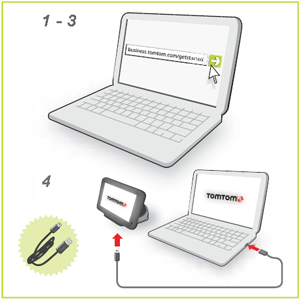
how to install the latest updates from TomTom ?


     1. Install my tomtom.
         
         If you have not yet installed the MyTomTom software on your computer, please read the FAQ: "MyTomTom" .

Install your tomtom with your computer


    2. Connect your navigation device to a computer and start it.
        
        MyTomTom starts automatically as soon as a navigation device TomTom PRO supports is                         connected to your computer and notifies you if updates for your navigation device exists.

    3. Download and install the update. 

        If MyTomTom does not check for available updates automatically, click Obtain new items. 
        A window opens and lists the available evidence. 

        Click Start Download. Thank you not disconnect your device until the update does not complete and              that it will not be restarted.
      
     4. Reset your navigation device. 
         
         Press and hold the On / Off button until you hear the sound of the drum and the machine restarts.                 This can take up to 30 seconds.
        
      5. Test your appliance outdoors.

          It is generally not possible to get a GPS signal inside, so take your device outdoors in clear view. Get             a satellite signal for the first time after installing the update can take up to five minutes. 

         To confirm the correct reception of the GPS signal, you can check the status on your GPS device.


Be The First To Comment
                                                                         TomTom

TomTom is a software route planning and manufacturer of mobile GPS navigation systems or embedded in some vehicles .
The range of TomTom products includes both autonomous navigation systems for car or motorcycle designed on a Linux platform and software to be installed on mobile phones, PDAs and smartphones. With regard to smartphones, the  company has released an application on the iPhone App Store in August 2009 and are in the process of developing for Android on the Android Market .
TomTom gpstomtom gps in the vehicles


TomTom gps Smartphonetomtom gps


© 2011 TomTom GPS - Designed by Mukund | ToS | Privacy Policy | Sitemap

About Us | Contact Us | Write For Us